
Let’s build a website from scratch!
Build with blocks.
Drag, drop, click… no code!
Would you believe you can build your entire website with Xaira and just two plugins?
The Xaira theme and our 2 plugins provide everything you need for a professional, fully functional website… quickly and easily.

Hello!
I’m Zack… I’ve been building WordPress themes, plugins and offering custom built client websites for over 15 years. I’ve put everything into this Xaira theme to enable me to quickly and easily build my client websites… Xaira plus just 2 plugins!
I’ve release them onn wp.org now for anyone to use, so where you’re building your own website or want to start building sites for your clients… Give them a try!
Why Use Xaira for your next site?
Used on all of our own client sites! Xaira and our 2 plugins reduce plugin clutter, turbocharge performance, and guarantee flawless, conflict-free websites you and your clients will love.
Plus get me as your personal developer for advice and help while building sites!
Design and build faster using WordPress patterns and blocks
Save time and streamline your workflow with prebuilt patterns and flexible blocks. Easily drag, drop and customize layouts to fit your brand. Build professional websites quicker while keeping full control over your design.
Xaira is FREE and always will be. Let’s get your busines online!
Launch your website without barriers using the Xaira theme. Simple to set up and fully customizable, it gives you everything you need to take your business online. Our plugins are also free with optional upgrade.
Upgrade to our Premium Plugins & get even more
While Xaira is free forever, you can unlock even more features with our Pro plugins, and then get export support to help… Think of me as your personal developer to help get your website up and running smoothly.
OK… Let’s get started !
Alright… So you still need a hosting provider, here’s the hosting companies I suggest.
Have a look at these companies websites and descide which one feels the best to you, they are all quite similar and with my 15+ years of experience dealing with these companies… I will gladly recommend any one of them.
In order of me recommending them.
Hostinger
I currently host all my websites with Hostinger and I highly recommend them, they pffer the best prices for hosting multiple websites and give you top performance and backups etc
Cloudways
I currently host all my websites with Hostinger and I highly recommend them, they pffer the best prices for hosting multiple websites and give you top performance and backups etc
Perfect…. Then let’s keep going !
Not sure about your hosting provider? You’re welcome to email me and ask advice of whether I think you should stay or not.
These providers I recommend below offer some of the best prices in the hosting industry… Including FREE migrations if you want to move over.
I am also happy to help you move over if you are sure you want to change providers… Just get in contact.
Hostinger
I currently host all my websites with Hostinger and I highly recommend them, they pffer the best prices for hosting multiple websites and give you top performance and backups etc
Cloudways
I currently host all my websites with Hostinger and I highly recommend them, they pffer the best prices for hosting multiple websites and give you top performance and backups etc
Do you have WordPress installed already?
Great… Let’s go and install the theme and plugin next.
Ok, so your hosting provider should be able to help you with this.
Most hosting companies nowadays offer a one-click install to get WordPress installed and running.
I can definitely help you with this, I will just need to charge a little.
Get in contact with me and I’ll help you get setup and start bulding your website.
Installing WordPress Theme & Plugins
First…
Install Xaira
The easiest way to Install Xaira is to install it from the WP Dashboard.
Go to Appearance → Themes → Add New and search for “xaira” to find the free theme and install it.
You can also download it via wp.org and manually install it by going to Appearance → Themes → Add New → Upload Theme.
Next…
Install Blockons
Next let’s install the Blockons plugin which will give you more advanced blocks, block extensions and Site Addons to build your website with.
Navigate to Plugins → Add New and search for Blockons… Or go to Appearance → Xaira Theme and you can also install them from there.
And then…
Install Theme Site Kit
And then install the Theme Site Kit plugin by going to Plugins → Add New and search for “Theme Site Kit”, or go to Appearance → Xaira theme and install it from there too.
Theme Site Kit gives you advanced features like Maintenance Mode, Safe SVG Uploads, Disable Comments, adding Side Social links, as well as page templates to import, and still more.
Some admin work quick…
Basic WordPress Admin Setup
Delete WordPress Dummy Data
In your WordPress Dashboard, navigate to Pages, Posts and Comments sections, and delete the dummy data that comes installed with WordPress.
Setup Initial Website Pages
Then, let’s set up your initial website pages such as Home, Blog, About and Contact, which you will most likely have on your website. You can add any other pages that you know you’ll have.
Name the pages however you’d like, and ensure the slug is the same.
I recommend creating a blog page, you can always use it at a later stage… Great for SEO and getting found on search engines.
Set Static Home & Blog page
Once your pages are setup, then navigate to Settings → Reading in your Dashboard, and set “Your homepage displays” to “A static page” and then set Homepage → Home and Posts page → Blog.
By default WordPress lists your blog posts on the home page. We’ve just changed this to have a homepage and display posts on the blog page.
Set Pretty Permalinks
And last… Let’s change your url structure to pretty urls, which is what Google and other search engines prefer.
Navigate to Settings → Permalinks and change the “Permalink structure” to be Post name.
Blockons & Theme Site Kit
Configure WordPress Plugins
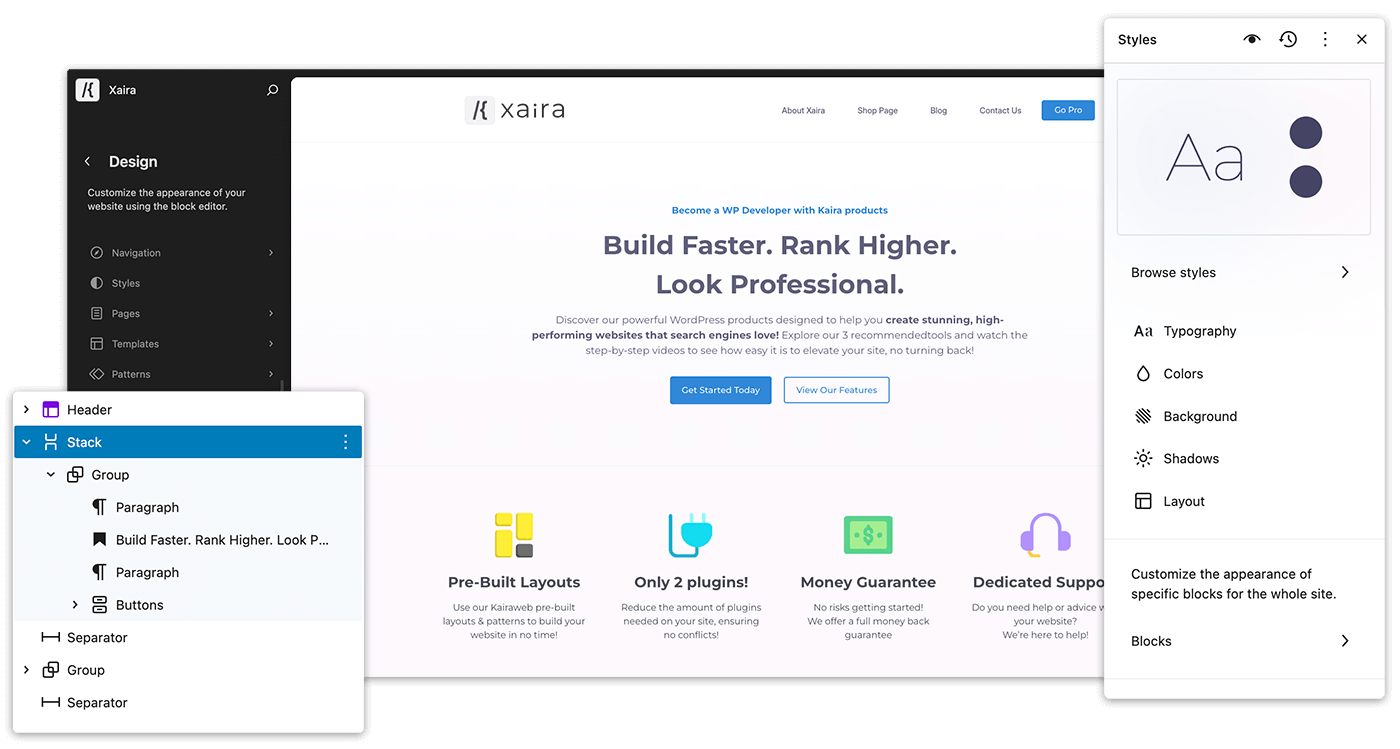
Xaira is a full block theme which is super fast, easy to build and edit templates and patterns, and it’s all build within the Gutenberg site editor.
Advanced Editor Blocks & Addons
Run Through of Blockons
Watch this video to get a full run through of the Blockons plugin to show you what blocks and site-addons it adds to WordPress.
Swiss-Army-Knife for WP
Run Through Theme Site Kit
Watch a video on how to congifure the valuable features offers the the Theme Site Kit plugin.
Enable Maintenance Mode while you’re still building, disable comments and reduce spam pon your site, enable safe SVG uploads and lots more.